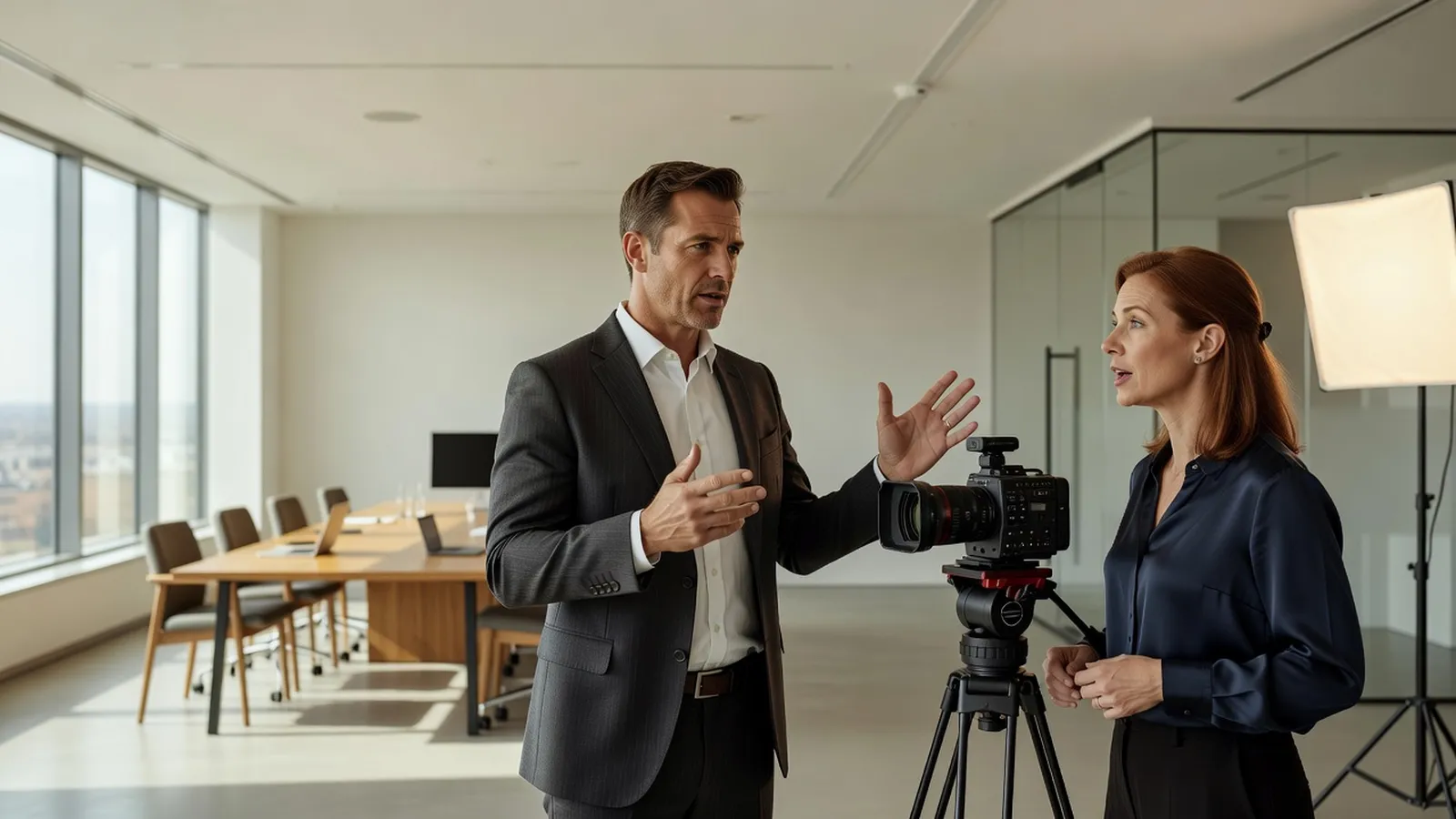
To introduce an organization, follow a piece of work that a newcomer will recognize. To train staff, show a task from an angle that lets an employee repeat it and check the result. To inform, lead with what has changed and what the viewer should do next. That choice shapes the script, running time and delivery package. It also tells you whose language to use, where the video belongs and what to discuss with employees before filming.
Three different jobs for a camera at the same counter
Suppose a service desk is moving. The request lands on your desk as “a video of the new space.” A visitor needs to recognize the entrance and know whether this is the place to bring a request. A new employee needs to know how to receive that request. A colleague answering the phone at another location needs directions to give a caller. The subject is the same counter. The useful shot is different in each case.
| Use | Objective | Typical format | Deliverables to plan for |
|---|---|---|---|
| Present the organization | Help a newcomer understand the service | Follow a request from arrival to handoff | Public-facing edit, captions and transcript for the service page |
| Train staff | Help an employee perform a task and check the outcome | Workstation demonstration with a close view of the deciding detail | Task-specific video, captions, descriptive transcript and job aid |
| Inform an audience | Explain a change and the action it calls for | Direct announcement with a view of the relevant location | Dated message, captions, written notice and link to current instructions |
At the briefing, finish the sentence “After watching, the viewer should be able to…” If the answer is “know us better,” ask what the visitor would do differently on arrival. If the answer is “prepare a request for handoff,” put a blank form on the table. Ask the person commissioning the video to show you what a request ready for handoff looks like. You now have something to frame, rather than an adjective to interpret.
You need not commission separate shoots for every use. A view of the entrance might work in both a public introduction and a staff announcement. Footage of a form being sorted belongs in an edit only if the audience needs that detail and the material can be shown to them. The guide to corporate and institutional video puts those decisions in the context of a production brief. Set out the intended edits before asking the crew which shots they can share.
Presenting the organization from the visitor's side of the desk
Start where the visitor has a question, not where the organization chart starts. Can I bring my request here? Who receives it? How will I know it has gone to the right place? Those questions give the editor a sequence: arrival, conversation, handoff. The visitor can understand what the organization does without having to remember department names or sit through an introduction to every person who works behind the counter.
Build the interview around a moment the camera can observe. Rather than asking an employee to describe the team's values, ask what they do when a visitor doesn't know whom to ask for. Listen for a decision. Perhaps the employee checks where a request belongs before passing it along. Arrange to film that check using a demonstration form, not a visitor's active file. Let the employee explain why the check matters while the picture shows where it happens.
When reviewing the interview, listen without the pictures first. A line about what happens to the request after the visitor leaves may deserve to stay even though there is no corresponding shot of the next office. A line describing the door the viewer is already looking at may contribute very little. The distinction is not simply between showing and telling. Give the voice the job the picture cannot do, and hold the picture when the viewer needs time to recognize a place.
Test the edit with someone unfamiliar with the service. Give them a plausible reason to visit and ask where they would take their request. If they choose the wrong counter, ask which image led them there. A shot filmed from behind the desk may make perfect sense to the employee and reverse the landmarks for someone walking in. Try replacing it with the visitor's approach before asking anyone to record a longer explanation.
Training that earns its place at the workstation
For the staff version, stand where the new employee will stand. Ask a colleague to perform the task with demonstration materials before the camera comes out. Watch for the pause while they read a field, the turn of a page or the glance at a tray before they let go of the form. Then ask what they were checking. A person fluent in a task may describe it as a single action even though the decision to proceed depends on a detail the camera has yet to see.
For a handoff demonstration, use a wider view to establish the form and the trays. Move closer for the mark that distinguishes a complete request from one that needs attention. Keep the finished example in view long enough for an employee to look down at their own form and back at the screen. If a thumb covers the mark at the decisive moment, shoot from the other side. Extra narration will not let the viewer inspect something the hand conceals.
Show the stopping point as well as the successful handoff. If the mark is missing, where should the employee look for the applicable instruction? You do not need to stage every exception. Give the demonstration a title that matches the task someone will look up, such as “Check a request before handoff.” A title about how the service operates sends the employee into a much broader video without saying where the answer is.

Try the rough cut with a blank form and the materials normally available at the workstation. Ask someone who was not on the shoot to prepare a request, using the video without coaching. Notice what they do when they pause it. Comparing the completed form with their own is a useful pause. Turning to you to ask which way up the form goes points to a missing view. The response to that test might be a new shot rather than a new paragraph of instructions.
Keep information that changes independently of the gesture in a document staff can consult. The camera can show when to check a list of destinations; it need not preserve the entire list in a close-up that will have to be replaced when an entry changes. The guide to deciding when to replace a PDF with a video can help separate what needs to be seen in motion from what an employee needs to look up.
When the clip is part of a wider training path, the design of that path comes before the shoot. The systems approach to designing training described by Eduplus helps decide what the video should cover and what belongs in another format.
Informing staff: put the change before the backstory
Open a relocation announcement with the change in the working day. Which desk is moving, when does the change take effect and where should staff direct visitors? Write for the colleague answering a call as well as the person standing in the hallway. “Over there by the doors” may work with a pointing hand on screen. Give the caller a destination they can repeat and the arriving visitor a landmark they can actually see.
Use a speaker on camera when their explanation resolves a question. A supervisor might explain why an entrance will remain open during the move. To show where the route turns, put the camera at the junction instead. Walk the approach during the location visit, facing the way a visitor will face. On the return trip, a sign that was hidden on the way in may be in plain sight. Filming the return trip because it looks clearer would teach the wrong route.
An announcement about a procedure should lead staff to the current instruction, not become a competing copy of it. Give the procedure's title and say where to find it. Put the effective date and the contact for questions in the written notice beside the video. Someone who remembers the change but wants to confirm when it starts should not have to listen to the whole announcement again to retrieve that detail.
Before recording a line such as “Starting tomorrow,” consider the person who will open the message later. Use a date in the notice. If the route footage could also serve the permanent introduction, record a line describing the destination without referring to the transition. Ask the service owner who will retire the announcement once the move is over. That lets the introduction keep its useful route without telling visitors indefinitely that the desk is new.
Set the running time in rehearsal, not in the abstract
Ask where the viewer will be and what else they will be doing. Someone browsing a service page may want to follow an employee through an entire request. Someone with a form on the counter may need to go straight to the check before handoff. Cutting the introduction down does not necessarily turn it into a useful job aid. The working version may need to start at the precise point the introduction passes over.
Time the announcement aloud, including the breath it takes to give directions clearly. Rehearse the workstation task at a pace that leaves the result visible. In the presentation, listen for different speakers making the same point. Remove a repeated explanation before cutting the quiet interval that lets someone recognize a doorway or read the form. A running time agreed on after those checks gives the editor a reason to keep a shot as well as a reason to shorten it.
Make tone a direction the crew can act on. For a warm introduction, film the employee listening to a visitor rather than asking everyone to smile at the lens. For a precise demonstration, name the object before giving the instruction that uses it. For a reassuring announcement, say which part of the existing arrangement will stay in place. A promise that the move will be easy is less useful than knowing which entrance remains available.
Record the choices on the shot list: shared views, lines needed for a particular edit, close-ups and passages to record in each planned language. Assign review of the task to someone who performs it and review of the announcement to someone who can confirm its wording. Those may be different people. For a practical account of where those checks fit, see a producer's walk-through from brief to delivery.
Captions, transcript and player: test the viewing experience
The Government of Canada's Digital Accessibility Toolkit addresses captioning, transcripts, audio description and keyboard access for audio-video material. Its guidance is written for government content, not as a blanket rule for private businesses. Use it as a public reference when specifying the work. “Provide synchronized captions and test them in the player on the service page” gives the production and publishing teams something more useful to check than “deliver an accessible video.”
Caption the approved edit rather than copying the shooting script. Match what is said and heard, time captions to the audio, identify speakers when needed and include significant sounds. Suppose the employee waits for an audible signal before passing the form along. Without a caption for the signal, the viewer sees a pause and a hand movement but misses the reason for proceeding. Watch the sequence with the sound off and check that the cue arrives with the action it explains.

A transcript should make sense away from the player. Alongside dialogue and narration, include relevant writing on screen, meaningful sounds, important actions and any audio description. Read the result without the picture. “Put it here” leaves out both the item and its destination; the transcript can say which tray receives the completed form. For someone listening without the image, make sure the narration or audio description conveys that destination at the moment it matters.
Distinguish captions in the spoken language from a translation. The toolkit's guidance on the language of audio-video content favours separate English and French videos over a combined bilingual edit in its government context, with synchronized captions matching the language spoken. For a corporate production, decide how people will find the version they need. Check the actual form in each working language: its label, the words spoken about it and the transcript should point the employee to the same field.
Test the player on the intended page, not just the video file on an editor's workstation. Put the mouse aside and check whether a viewer can:
- Reach the player without the video starting on its own.
- Identify the labelled controls and begin playback using the keyboard.
- Pause or stop playback and adjust the volume.
- Access the captions and find the accompanying transcript.
Before filming employees, agree on who will see the edit
“It's for work” could mean a demonstration restricted to colleagues or an interview available to anyone visiting the service page. Tell the employee what the camera will show, what it will record them saying, which edits are planned and how long the organization intends to use them. Have that conversation before the crew is waiting at the counter. Plan another way to cover the sequence if the employee does not want to appear.
In Quebec, articles 35 and 36 of the Civil Code of Québec protect privacy and reputation. An invasion of privacy requires the person's consent or authorization by law. Using someone's name, likeness, image or voice for a purpose other than legitimately informing the public can constitute such an invasion. Do not treat being present at work as agreement to appear in a particular release.
For personal information, Quebec's Commission d'accès à l'information describes general consent criteria rather than a rule written specifically for filming employees. Consent must clearly express a free and informed choice. It must cover specific purposes, allow separate choices and be limited in time. The request must be understandable and, in writing, distinct. For sensitive information, including medical, biometric or otherwise intimate information, consent must be express. The relevant provincial text is the Act respecting the protection of personal information in the private sector.
Make the choices concrete. An employee may be comfortable demonstrating a handoff for colleagues but not discussing their background in a public introduction. Ask separately rather than offering an all-or-nothing shoot. Check the background as well: arrange the filming so a visitor bringing in a real request does not become part of the scene. Give the editor a record of the agreed uses. If someone later wants an internal interview excerpt for the public page, check that proposed use before cutting it into the presentation.
Give every delivered version a home and an owner
For the introduction, choose the page a visitor goes to when looking for the service, not just the page that houses the organization's videos. Use a title that tells the visitor what the film explains, and keep the desk's contact information nearby. If people need to find the page from outside the organization, the guide to video search and visual discovery addresses that public-facing task. There is no need to give the internal demonstration the same destination.
For the training edit, start at the workstation. Ask a colleague to find the demonstration using their regular access and starting page. If they have to know the production project's name, relabel the link with the task. Put the job aid beside it and ask the person responsible for the procedure to review both when the form changes. They should be able to find the affected close-up, caption and transcript passage without searching through unrelated footage.
For the announcement, imagine opening an old staff message after the move. Can the reader tell that the notice describes a past transition? Does it still lead to current directions? Link to a maintained page rather than attaching another copy of the film each time the message goes out. Agree on what to remove at the end of the move and what must remain available to someone trying to reach the desk.
At handoff, open each destination with the person who will look after it. Have them locate the approved edit, its matching captions and the transcript. Agree on where to report an outdated gesture, a player control that cannot be reached or a question about an employee's appearance. If the desk moves again, the service owner should know exactly which shot needs replacing and where the corrected version belongs.